
Caption a Kaltura Video
Kaltura Reach uses automated speech recognition (ASR) to recognize words spoken in your video and provide machine-based captions for your video.
All video content in our courses should be closed captioned to be accessible for all learners. Follow these instructions to use the Kaltura Reach tool to machine-caption your videos.
Caption a Video using Kaltura Reach
- Log into Kaltura at . View Kaltura Login instructions if needed.
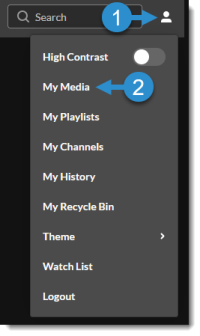
Navigate to your My Media page by clicking the User icon in the top right corner, and then selecting My Media from the drop-down menu. All of your videos will be listed on this page.
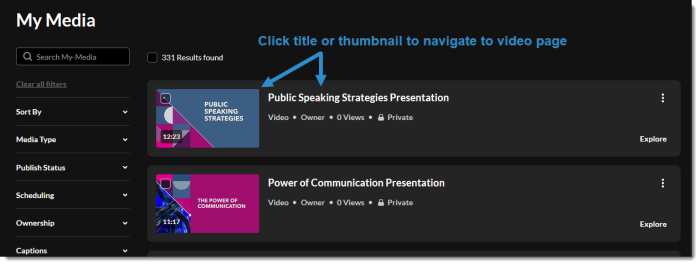
Locate the video for which you would like to order captions (use the search bar and filters on the left as needed). Click on the video title or thumbnail to navigate to the video page.
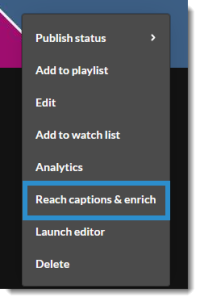
Below the video player, click on the kebab icon (three dots) to expand the action menu.

Select Reach captions and enrich from the menu. A dialog box will pop up.
Select your desired options from the drop-down menus. Typically, you will be able to use the default settings (Feature: Captions; Service type: Machine; Source media language: English). Then click the Order button. You should see a confirmation message at the top of your screen.

Note: It will take some time for Kaltura Reach to generate the captions. You can close the window. You will receive an automated email when the caption process is complete.
Edit Captions
While Kaltura Reach does a good job with their machine-generated captions, you should review and correct the captions for accuracy. Pay special attention to things like names and other proper nouns or discipline-based terminology, which may not be auto-captioned accurately.
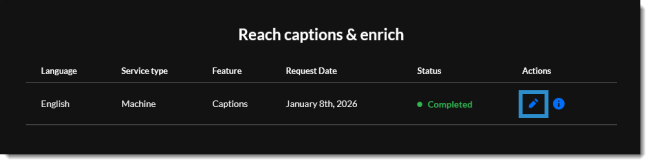
- Follow steps 1-5 in the process above to navigate to the Reach captions and enrich settings for your video.
Locate the captions file you would like to edit and click on the pencil icon (edit) to open the Captions editor.
The Closed Caption Editor page is divided into two panes. On the left, you will see each timestamp and the text that will display for that duration. On the right, you will see a video playback window. The corresponding caption text is also displayed below the video player. Play the video and compare the captions to the audio, correcting the captions as needed.

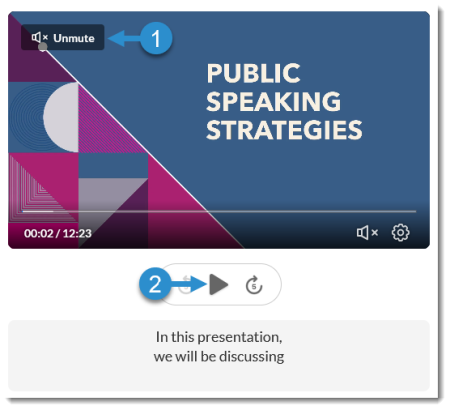
To play the video, click the Unmute icon in the top left of the video player, then click the Play (triangle) button. The captions on the left will automatically scroll as the video plays, and the corresponding caption will be highlighted.
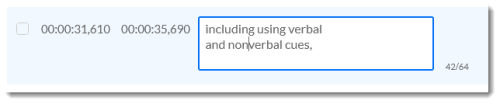
To correct a caption, click into the caption field on the left, then adjust the text accordingly.
If you make a mistake, you can click the Revert link in the top right to start over from your last save point.
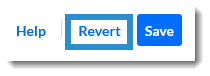
When you are finished editing, click the Save button to save your changes. Tip: Save after making every few edits so that you don't risk losing your work if your login times out or if you need to revert changes after making a mistake.

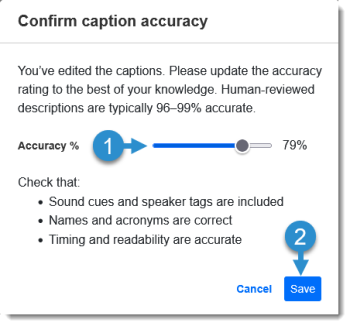
A dialog box will pop up. Use the slider to adjust the accuracy percentage appropriately, then click the Save button.
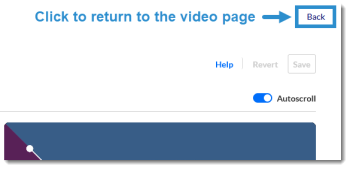
When you are finished editing captions, you can click the Back button to exit the Closed Caption Editor and return to the video page.
Updated January 2026
