
Record Video with Kaltura Capture
Kaltura Capture is a desktop recording application that allows you to record video content from your computer. You can combine multiple source inputs, including audio, webcam, and screen recording. Follow these instructions to record a new video.
Before You Start:
- In order to record audio, you will need a microphone (built into a laptop or an external USB mic). If you want to record video of yourself or of a demonstration, you will need a webcam.
- If you haven't yet, install the Kaltura Capture application on your computer.
Launch Kaltura Capture
The Kaltura Capture application can be launched from your web browser or from your computer desktop. Note: The first time you launch Kaltura Capture, you must launch it from the web browser so that it can link up to your account.
- Log into Kaltura at . View Kaltura Login instructions if needed.
Click the + Create button in the top right and select Capture from the drop-down menu.

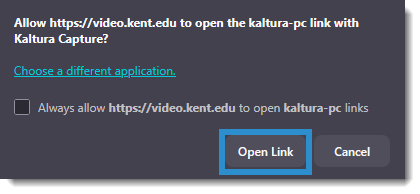
Your web browser may pop up a dialog box asking you to confirm that you want to launch the application. These messages will vary by browser and may look like the screenshot below. Select to open the link/launch the application.
Record and Upload Video
Once you've launched the application, select your recording options, record, and upload your video.
Select your recording options. Click the buttons to toggle the screen recording, webcam, and microphone on and off as needed. Click the drop-down arrows next to each input to select additional options (e.g., select which screen to record, change webcam or microphone input). You can click the Manage link in the bottom right corner to further customize your recording options, including resolution and system audio if needed.

- Start the recording. When you are ready to record, click the Record (red circle) button. Kaltura will count down and then begin recording.
Present your content. You can Pause and resume if needed. Click the Stop (square) button to end your recording.

Tip: If you are doing a screen recording, you can minimize the Capture application while recording so that is does not appear in the video.
Save and upload the video. Type in a title for your recording, with optional description and tags. Then click the Save and Upload button to upload it to .

Once the recording is uploaded, you can view it on on your My Media page. You can embed recordings in Canvas using the Embed Kaltura Media tool.
Note: The publishing status for your video will be set to "Private" by default. If you want to share the video via the URL, you will need to change the publishing status to "Unlisted."
Updated January 2026
